A Windows 7 ISO is a complete digital copy of the original Windows 7 installation disc, saved in the .iso image format. You can use the ISO file to:
- Install Windows 7 on a PC
- Run Windows 7 in VirtualBox or another virtual machine
- Create a Windows 7 bootable USB installer
However, Windows 7 reached its end of support in January 2020, and Microsoft no longer offers public downloads. As a result, most users can't obtain the installation files directly from the official Microsoft website. While Windows 7 ISOs can still be downloaded online.
What you can get from this Windows 7 download database:
- Follow the direct links to download official Windows 7 ISO files in 64-bit, 32-bit, and all-in-one versions.
- Follow the detailed steps to create a bootable Windows 7 USB
- Follow the guide to install Windows 7 on a PC
- Learn the important legal and security tips you should know before getting started
Note: 🔔 Need Windows 7 Pro ISO? Get it directly from: Windows 7 Pro ISO Download | Windows 7 Home ISO Download
Or, you can get any other Windows ISO files from this database: Windows ISO Download.
Is there official access to download Windows 7 ISO?
Microsoft no longer provides public downloads for Windows 7, but official access may still exist in a few limited cases:
- Volume Licensing / Enterprise portals: Organizations with Microsoft volume licenses may still download Windows 7 ISOs through enterprise licensing portals.
- Developer subscriptions: Some Microsoft Visual Studio or former MSDN subscribers can access legacy operating system downloads.
- OEM recovery media: If your computer originally shipped with Windows 7, manufacturers like Dell, HP, or Lenovo may still offer recovery images for that specific model.
Note: For most users today, the common option is to download archived Windows 7 ISOs. An archived Windows 7 ISO can still be considered as a genuine copy of the official Microsoft release if it is unmodified - its SHA-1 checksum matches the download source's hash.
Is it still legal to download Windows 7 online?
Yes. Downloading a Windows 7 ISO file is generally legal. The ISO file itself is only the installation media; it does not grant a license.
Not recommended: Downloading modified or pirated Windows 7 ISOs from untrusted websites, as they may contain malware or unauthorized changes.
Download Windows 7 ISO 64-bit (The securest way)
A 64-bit version of Windows 7 is designed to run on 64-bit CPUs of PCs.
You can use iBoysoft DiskGeeker for Windows to safely download the frequently-used 64-bit versions of Windows 7 Home Premium, Windows 7 Pro (Professional), and Windows 7 Ultimate, all in English.
Steps to download Windows 7 ISO 64-bit:
- Install and open iBoysoft DiskGeeker for Windows.
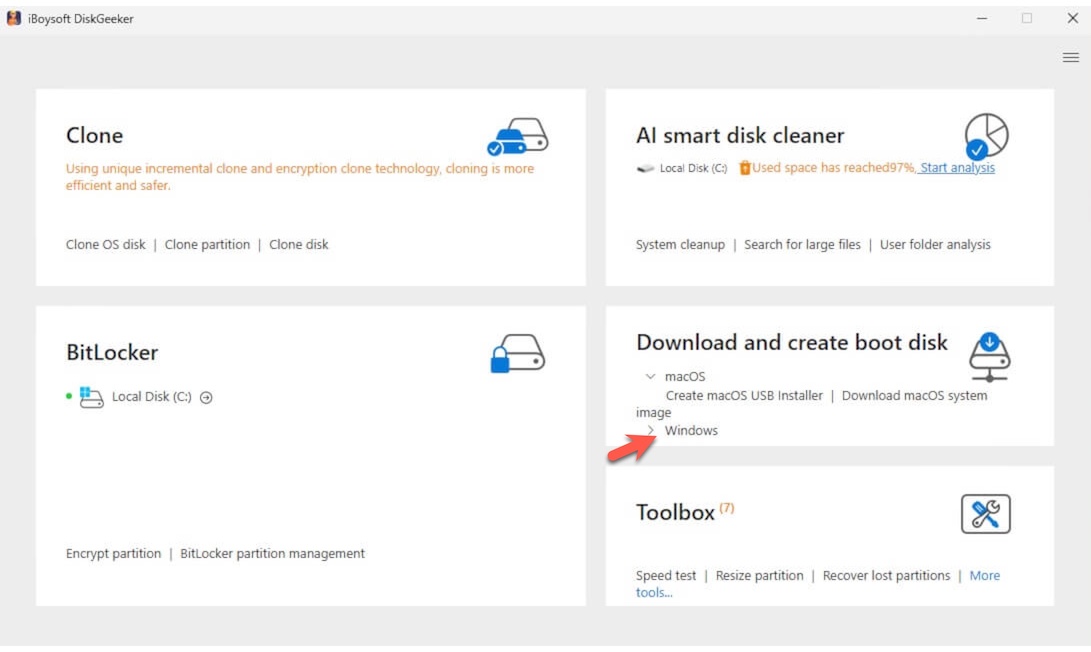
- In the Download and create boot disk field, click "Windows" > "Download Windows system image."
- Click on Windows 7 and select the Windows version, language, system architecture (X64 by default), and system version.
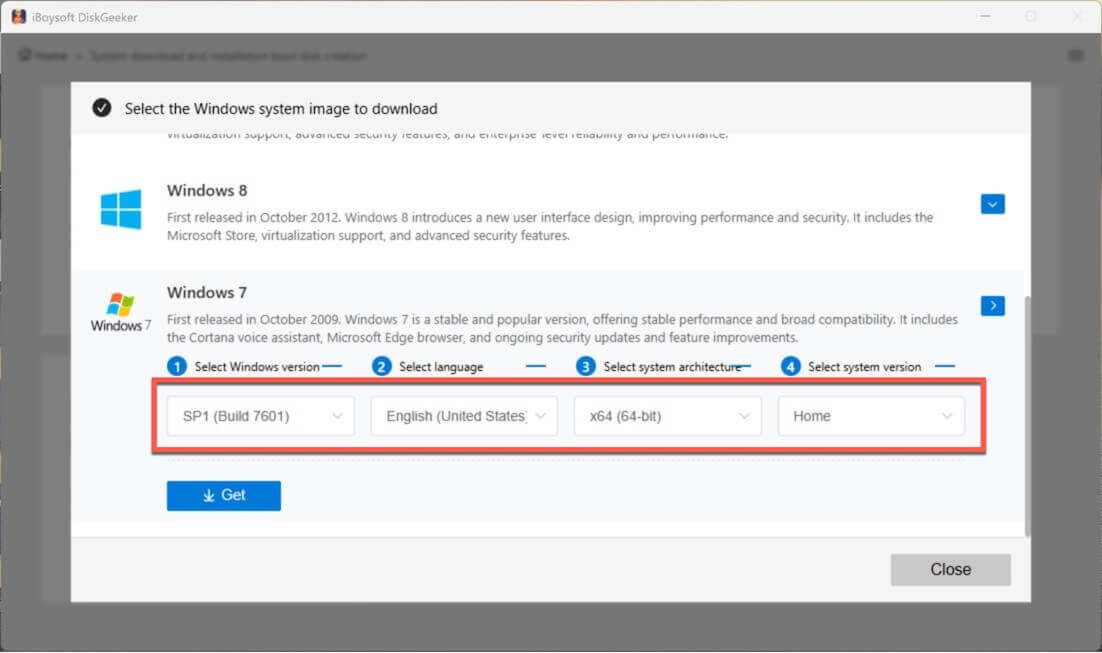
- Click "Get," choose a location, and wait for the process to complete.
Windows 7 edition explanation:
| Edition | Best For |
| Home Premium | Home users, basic tasks |
| Professional | Business users, domain join |
| Ultimate | Advanced users, BitLocker |
Note: The downloaded Windows 7 ISO is not activated. When you install Windows 7, you can either enter a valid product key to activate it or try its 30-day free trial.
After getting the Windows 7 ISO, check its system requirements before installing it or using it to create a bootable USB drive.
System Requirements for Windows 7 ISO 64-bit
| Processor (CPU) | 1 GHz or faster, 64-bit (x64) |
| RAM (range) | Home Premium edition: 2 GB - 16 GB Professional & Ultimate editions: 2 GB - 192 GB |
| Application Compatibility | Runs 32-bit & 64-bit apps |
| Minimum installation storage | 20 GB |
| Graphics Requirements | Base: DirectX 9-capable GPU with WDDM 1.0 driver Aero Glass: 128 MB graphics memory, Pixel Shader 2.0, Windows Experience Index ≥ 3.0 |
| Minimum display resolution | 800 × 600 pixels |
| Firmware Support | BIOS or UEFI (Secure Boot supported but not required) |
Verify Windows 7 ISO integrity before using
After downloading the Windows 7 ISO file, remember to verify it before installation. This ensures the ISO file hasn't been corrupted or tampered with.
- Use SHA-1 checksum tools on Windows.
- Compare the hash with Microsoft's original checksum values.
I've checked my downloaded Windows 7 ISO integrity using certutil in Command Prompt, and here are my steps:
Step 1: Open Command Prompt as administrator
- Click Start.
- Type cmd.
- Right-click Command Prompt.
- Select Run as administrator.
Running CMD with elevated privileges ensures the command executes without permission issues.
Step 2: Generate the MD5 checksum
In the Command Prompt window, enter:
certutil -hashfile "C:\path\to\your\windows7.iso" MD5
Replace C:\path\to\your\windows7.iso with the actual file location of your downloaded Windows ISO.
After a few seconds, Windows will display a long string - this is the MD5 hash of the ISO file.
Step 3: Compare the MD5 value
Compare the generated MD5 hash with the official MD5 checksum provided by the download source.
✅ Match → The ISO file is intact.
❌ Mismatch → The file may be corrupted or altered and should be re-downloaded.
Step 4: Generate the SHA-1 checksum (Recommended)
For additional confirmation, run:
certutil -hashfile "C:\path\to\your\windows8.iso" SHA1
This command calculates the SHA-1 hash, providing an additional layer of integrity verification.
Step 5: Verify the SHA-1 value
Compare the output SHA-1 string with the official SHA-1 checksum.
If both MD5 and SHA-1 values match the official data, the Windows 7 ISO file is verified and safe to use.
How to create a Windows 7 bootable USB installer?
To install Windows 7, you need a Windows 7 bootable USB.
Microsoft once offered the USB/DVD Download Tool for creating Windows 7 bootable USBs, but it's no longer available. Today, many users employ Rufus, but its open-source nature raises security concerns, and the setup process can be tricky.
A simpler choice is iBoysoft DiskGeeker for Windows. This multi-functional disk manager for Windows can help you create a Windows 7 bootable USB installer with just a few clicks, making it quick, easy, and smooth.
Steps for creating a Windows 7 bootable USB installer
- Download iBoysoft DiskGeeker for Windows, install and open it on your computer.
- Connect an erased USB drive with at least 32 GB of free space to the PC.
- In the Download and create boot disk module, click "Windows" > "Create Windows OS USB Installer."
- Select your USB drive as the target disk and click Select.
- Choose Windows 7 and click "Start creating boot disk" > "Yes."
Then, this tool will quickly download Windows 7 ISO. Once the download is complete, it will automatically start creating the Windows 7 bootable USB installer.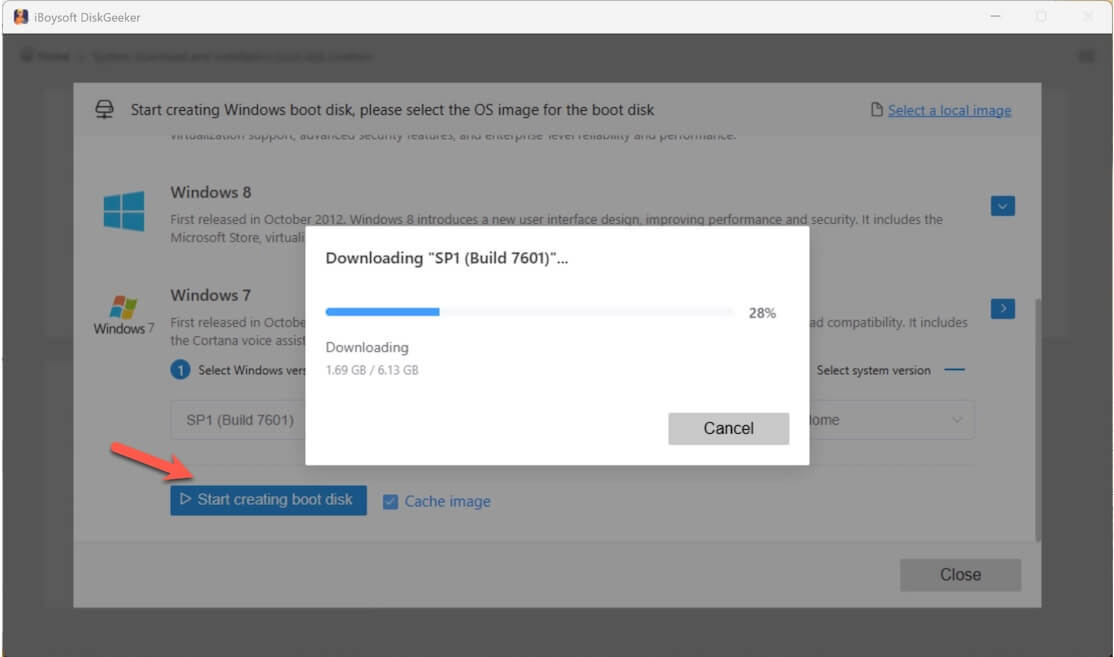
Alternative: Clone Windows 7 PC to make a bootable copy of Windows 7
Notably, this Windows disk manager also lets you quickly get a bootable copy of Windows 7 by cloning the system partition of a Windows 7 PC.
Unlike the Windows 7 bootable USB installer, the bootable copy of Windows 7 lets you directly run Windows 7 from the external drive without installation or setup.
It is suitable for starting up a computer that won't turn on and testing Windows 7 with the same configurations on different PCs.
- Free download, install, and open iBoysoft DiskGeeker for Windows.
- Connect a USB drive to the Windows 7 computer.
Note: The storage capacity of the USB should be larger than the system partition of the PC. Otherwise, the OS disk cloning task will fail. - In the Source OS disk section, you'll see the automatically-detected system partition there. Just check it.
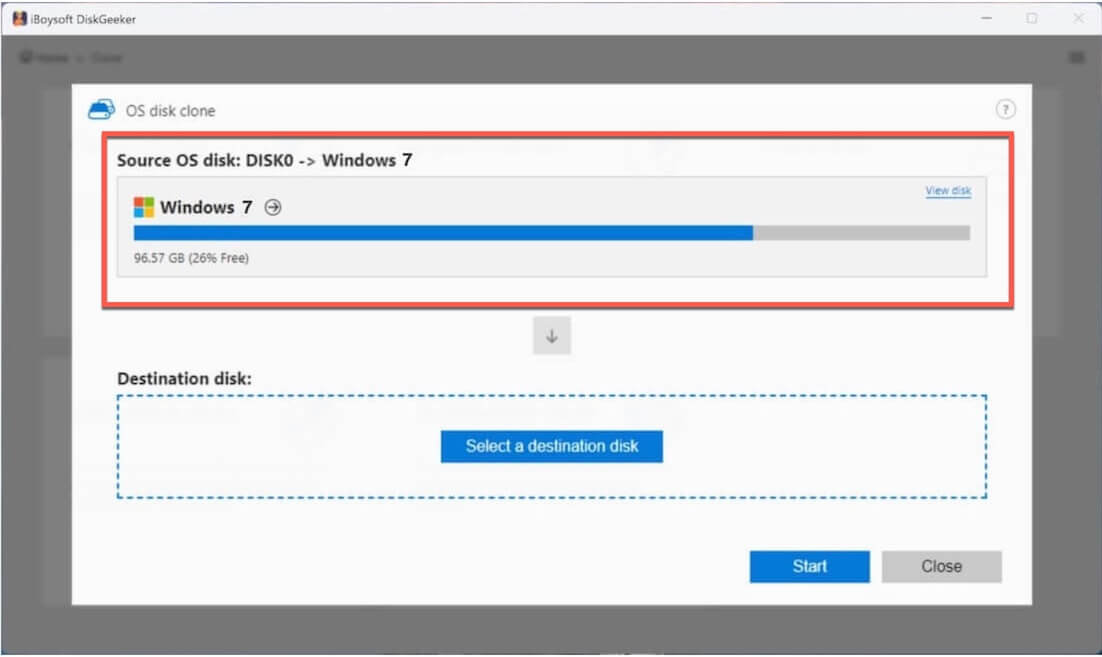
- Click "Select a destination disk" and choose the USB drive as the target.
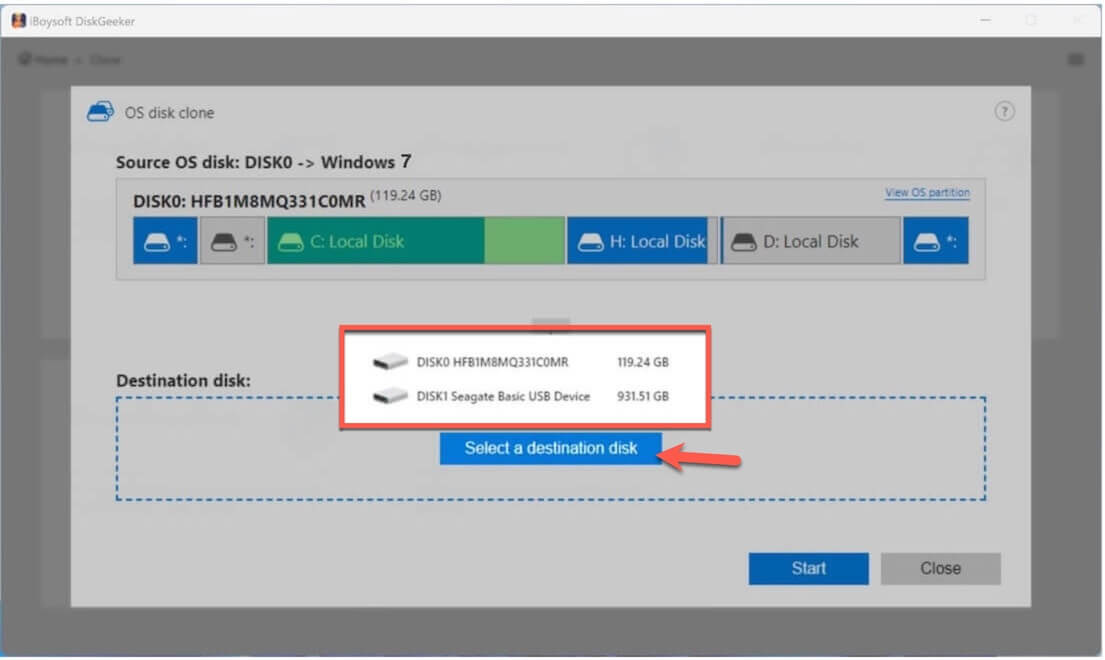
- Click "Start" > "Confirm" to let the Windows 7 system partition clone process start.
Now, you can use this copy of Windows 7 to directly boot up a PC from it, no configuration required.
How to install Windows 7 (Step-by-step)
You can use the Windows 7 bootable USB to boot a PC and install Windows 7.
Follow these steps:
- Connect this Windows 7 bootable USB drive to the target PC.
- Restart the PC, and meanwhile, press and hold the specific Boot Menu key (as below) to enter the Boot Menu or BIOS/UEFI.
HP: F9 or Esc
Dell: F12
Lenovo: F12
Acer: F12
ASUS: Esc or F8
MSI: F11 - Select the Windows 7 bootable USB as the boot device in the Boot Menu.
If you can't access the Boot Menu, enter BIOS/UEFI. In the boot priority list, set the USB drive to be the first. - Wait for your computer to start up from the bootable USB.
- Follow the on-screen instructions to install Windows 7.
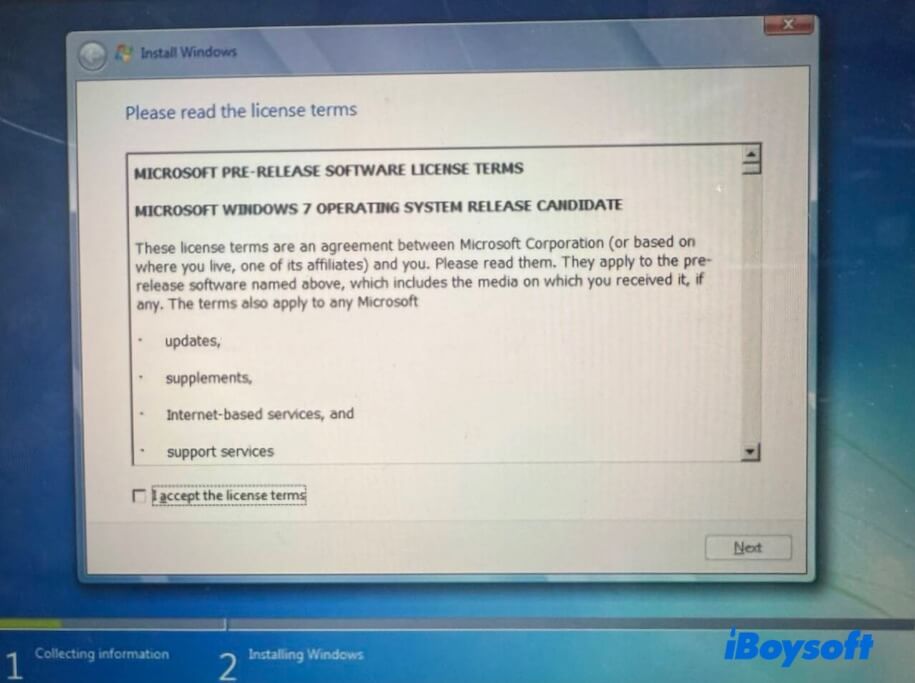
Note: If you have a valid product key, just enter it. If you don't, you can skip this step, select a Windows 7 edition, and try the 30-day free trial of it.
Windows 7 security risks & best practices
Because Windows 7 no longer receives security updates:
- Do not use it for online banking or sensitive data
- Install reputable antivirus software
- Keep the system offline if possible
- Use Windows 7 mainly for legacy apps or testing
Need newer Windows 8.1/8/Vista? Download from:
Download Windows 8.1 ISO
Download Windows 8 ISO
Download Windows Vista ISO
Need Windows Server? Get from:
Download Windows Server 2025 ISO
Download Windows Server 2022 ISO
Download Windows Server 2016 ISO
FAQs about Windows 7 ISO download
- QCan I download Windows 7 ISO without product key?
-
A
You can download Windows 7 for free, no product key required, from third-party online sources, but installing and running it requires a valid license for legal activation.
- QCan I still activate Windows 7?
-
A
Activation may still work with genuine keys, but it is not guaranteed.
- QIs Windows 7 ISO available in formats other than ISO?
-
A
No. ISO is the only official format.
- QHow to download Windows 7 Ultimate 64-bit ISO file?
-
A
If you have a genuine Windows 7 Ultimate product key, you can get the Windows 7 Ultimate 64-bit ISO file from the official Microsoft page. Otherwise, you can only download the Windows 7 Ultimate 64-bit ISO file from third-party resources.